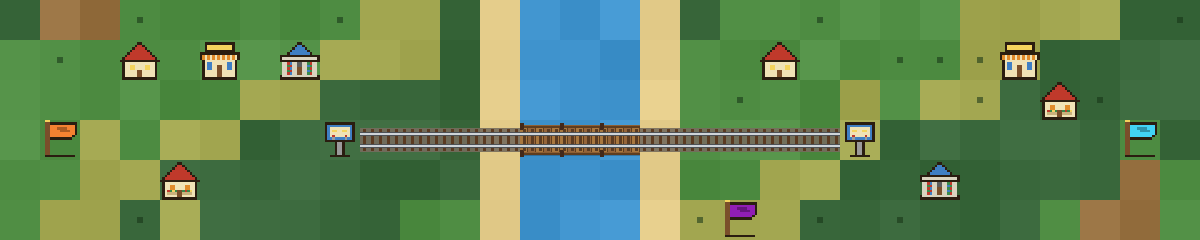
What it’s for
Everyone uses their world a little differently. A few ideas to start with:
- A start page you can walk through Put your everyday websites in houses and shops, and your morning routine becomes a short stroll through town. Try the example
- A memory map Photo Memories houses hold boards of pinned photos. Places can be memories too, like a first apartment or a favorite beach, and regions of the map can become a life timeline: childhood, school years, today. Try the example
- A reading or project atlas Libraries for reading lists, flags to name regions like Work, School or Hobbies, and train lines between them. Try the example
- A world for kids Gentle, no account, nothing to compete over. Kids can build their own town, or follow a scavenger hunt you set up: clues hidden in houses, compass directions to follow, a train ride, and a prize at the end. Try the example
Every world name is a different land, so you can keep a separate world for each of these.
Getting around
Walk with the arrow keys on a computer, or with the joystick on a phone or tablet. Water blocks the way until you build a bridge across it.
The box in the top-left corner shows which world you’re in and how far you’ve wandered from World Center, where every world begins. The minimap shows what’s nearby. Tap it to fold it away, and tap again to bring it back.
The three buttons in the top-right corner are the whole menu: Build , Worlds and Settings .
Keyboard shortcuts
| ← ↑ → ↓ | Walk |
|---|---|
| B | Open or close Build |
| 1–5 | In Build: House, Shop, Library, Train Stop, Flag |
| Q | In Build, next to water: Add Bridge |
| W | In Build, on a bridge: Remove This Bridge |
| E | In Build, on a track: Remove Track Here |
| Space | On a train: Request Stop |
| Esc | Close a window, or close Build |
Your worlds
Your worlds live on this website, in this browser, on this device. There’s no account and no copy anywhere else. So they won’t be there if you open the game on another of our websites or in another browser, and they’re gone if this browser’s data is cleared. Download a copy now and then.
World names
The name is the world. Every name grows its own land, with its own hills, lakes and coastlines. Type a name you’ve used before and you’re back where you left off. Type a new one and a new world begins.
Switching worlds
Open Worlds to see your worlds, go to one, or start a New World. The ⋮ button next to each world has its statistics, Download / Move for just that world, and Delete.
Save & Share
In Worlds, choose Save & Share:
- Download / Move and Upload Save all your worlds to a .worlds file, and load them back on any device. Download keeps a backup copy. Download and Delete moves them: they leave this website, so you only keep one version.
- Send to Another Device Moves your worlds with a short code or a QR code. Each code works once, for 5 minutes. On the other device, choose Receive from Another Device.
- Map Image Saves a picture of your world’s map.
Deleted worlds
Deleting a world moves it to Deleted Worlds, where you can restore it for 15 days. After that, it’s gone for good.
Missing worlds
Opened the game and your worlds aren’t there? Most likely they’re right where you left them, just somewhere else. Each of our websites keeps its own worlds, so first check the one where you made them:
- DailyAtlas.app Daily Atlas, in English You are here
- MeuAtlasDiario.com.br Meu Atlas Diário, in Portuguese You are here
Still not there? Check that you’re:
- in the same browser, on the same device,
- not in a private or incognito window, which forgets everything when it closes,
- in the same place you played before: the installed app or the browser. On some phones, these two keep separate worlds.
Found them on another website? Keep playing there. To bring them here instead, open Worlds › Save & Share › Download / Move on that website and choose Download and Delete. Then upload the file here. That way each world only ever has one version.
If this browser’s data was cleared, your worlds can only come back from a .worlds file you downloaded before.
Building
Everything you build goes on the spot where you’re standing. Walk to where you want it, open Build, and pick what to add. Give it a name, fill in the details, and it appears right there, with you standing beside it.
What you can build
- House Holds one of three things: a note or a link (Text and Hyperlink), a board of up to 12 photos (Photo Memories), or a Computer Family, which is coming soon.
- Shop Opens a website. Handy for stores and services you use often.
- Library Also opens a website. Handy for things to read, watch or learn.
- Train Stop A station you connect to other stations with tracks. Trains are a fun shortcut: hop on instead of walking all the way to a faraway region. See Bridges and trains.
- Flag Names a region of your world, like “Blueberry Hills”, in a color you choose. Walk into it and it welcomes you to the region.
Visiting, changing and deleting
Walk into a building to visit it. A link opens in a new tab after a short countdown, a note shows itself, and a photo board lets you flip through its photos.
To change a building, visit it and choose Edit. Delete is inside Edit. Buildings can’t be moved: to put one somewhere else, delete it and add it again in the new spot. Deleting a Photo Memories house also removes its photos.
Photos are kept as small vintage-style prints, not as the original pictures, so keep your originals somewhere safe.
Bridges and trains
Building a bridge
- Walk up to the edge of the water.
- Open Build and choose Add Bridge.
- If there’s water on more than one side, pick which way the bridge should go.
A bridge can cross up to 48 tiles of water. To remove one, stand on it, open Build and choose Remove This Bridge.
Laying track and riding
- Add a Train Stop. The game offers to lay a track right away.
- Pick another stop to connect it to. The track finds its own way over land.
- To ride, walk into a stop and choose where to go.
A track can be up to 200 tiles long, and it crosses water only on bridges you’ve built. To reach farther, add stops in between. You can also visit a stop later to lay more track or remove some.
While riding, Request Stop lets you get off at the next stop, and you can ride at half, normal or double speed.
Questions
The basics
Is Daily Atlas a game?
Sort of. There’s no score and nothing to win. It’s a calm little world to explore and build in, where buildings can hold real things: your favorite websites, notes and photos. You can also make your own games in it, like a scavenger hunt with clues hidden in houses.
Is it free?
Yes, Daily Atlas is free to play.
Can I play offline?
Not reliably yet. For now, open the game while you’re connected to the internet.
Worlds
How infinite are the worlds?
As good as endless. Walking nonstop, day and night, it would take about ten years to go two billion steps in one direction, and there would still be new land ahead.
Why can’t I rename a world after I created it?
Because the name is what grows the land. The hills, lakes and coastlines all come from the letters of the name. A new name would grow a different land, and your buildings would end up in the wrong places.
If someone else types my world’s name, will they see my buildings?
They’ll see the same land, but not your buildings. What you build stays on your device unless you send it.
How many things can a world hold?
Up to 5,000 buildings, 1,000 bridges and 2,000 tracks. That’s a lot of room.
Saving and moving worlds
Where are my worlds saved? Do I need an account?
No account needed. Your worlds are saved on this website, in this browser, on this device. Each of our websites, and each browser, keeps its own worlds.
Can I lose my worlds?
Only if this browser’s data gets cleared, or if you play in a private window, which forgets everything when it closes. Download a copy now and then from Worlds › Save & Share. If your worlds seem to have disappeared, see Missing worlds.
How do I get my worlds onto my phone or another computer?
In Worlds › Save & Share, choose Send to Another Device and scan the code with your other device. Or download a .worlds file and upload it there.
I deleted a world by accident. Can I get it back?
Yes, for 15 days. Open Worlds › Deleted Worlds and choose Restore.
Is my data private when I send it to another device?
Yes. Your worlds are locked on your device before they leave, the server never sees the code, and the copy is deleted once it’s used or the code runs out.
Building
How do I cross water?
Build a bridge: stand at the water’s edge and choose Build › Add Bridge.
Why won’t my bridge build?
Make sure you’re standing right next to the water. The water may also be too wide (a bridge crosses up to 48 tiles), or something may be in the way on the other side.
Why can’t I connect two train stops?
They may be too far apart (a track can be up to 200 tiles long), or there’s water between them with no bridge yet. Adding a stop in between often helps.
Can I move a building?
No. To put a building somewhere else, delete it and add it again in the new spot.
What’s the Computer Family?
A new kind of house that’s coming soon. For now, these houses don’t do anything special.
Photos
Why do my photos look old-fashioned?
That’s on purpose. Photos are kept as small vintage-style prints, which also saves space. Keep your originals somewhere safe.
Why didn’t my photos come along to my other device?
Photos can be too big to send with a code. Use Download and Upload to bring them along.
Something seems odd
Why does it say the game is open in another tab?
To keep your worlds safe, the game runs in one tab at a time. Choose Play Here to play in the tab you’re looking at.
Cookies and privacy
Daily Atlas has no accounts, no ads and no trackers. Your worlds are saved in this browser, on this device, and nowhere else.
The game uses one essential cookie, just to remember where you left off. Nothing reaches our server unless you choose to send it, like when you move your worlds to another device, and even then it’s locked so that we can’t read it.
Contact
Daily Atlas is made by Marcelo Borges. Questions, ideas or problems? Write to [email protected].